
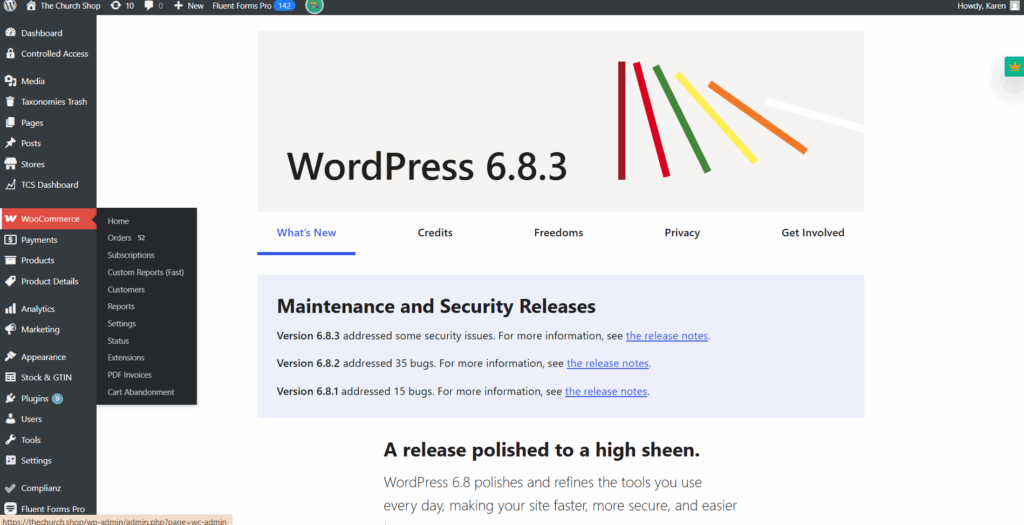
Go to WordPress Dashboard. Click My Products → Right-click → Open. Select the Pending tab.
This shows all items waiting for review (e.g., 26 pending).
REVIEWING ITEMS
Right-click product name → Open product page. Click Preview (eye icon) to see how the item looks in the shop.

For each product, carefully check the design to ensure the front and back are correct, the placement is accurate, and there is no offensive content. Verify the pricing to make sure the increments are accurate. Confirm that the church name matches the intended branding. Finally, check that all colors and sizes are complete and functioning properly. If item is valid scroll down → Click Approve.
AFTER APPROVAL
After each approval session, make sure to tally the total number of approvals completed within that hour and record the count in the spreadsheet. Here’s the spreadsheet link.

QUICK NOTES:
If unsure whether a design is acceptable → reach out via Slack for confirmation.
Always check Design, Pricing, Church Name, Colors, Sizes. ALWAYS Document approvals in the Spreadsheet. Confirm status changes to Published before moving on.
Watch this video for a quick walkthrough.