
Overview
This guide walks through creating DTF gang sheets, organizing artwork, checking files, and placing the gang sheet order in DTFC.
The goal is to make sure:
- All DTF orders are included
- Artwork is correct and print-ready
- Files are saved properly for future use
Create the Gang Sheet File
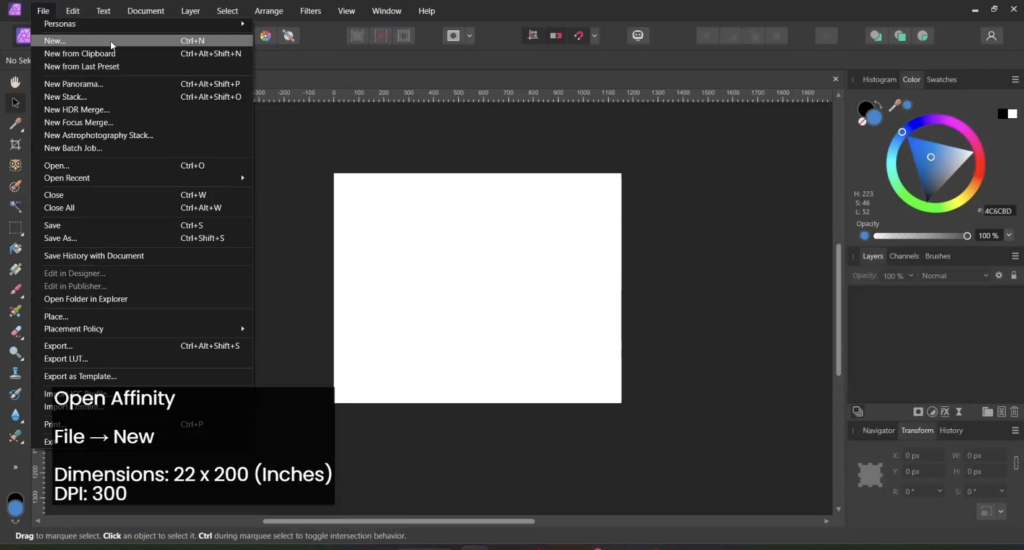
- Open Affinity Designer.
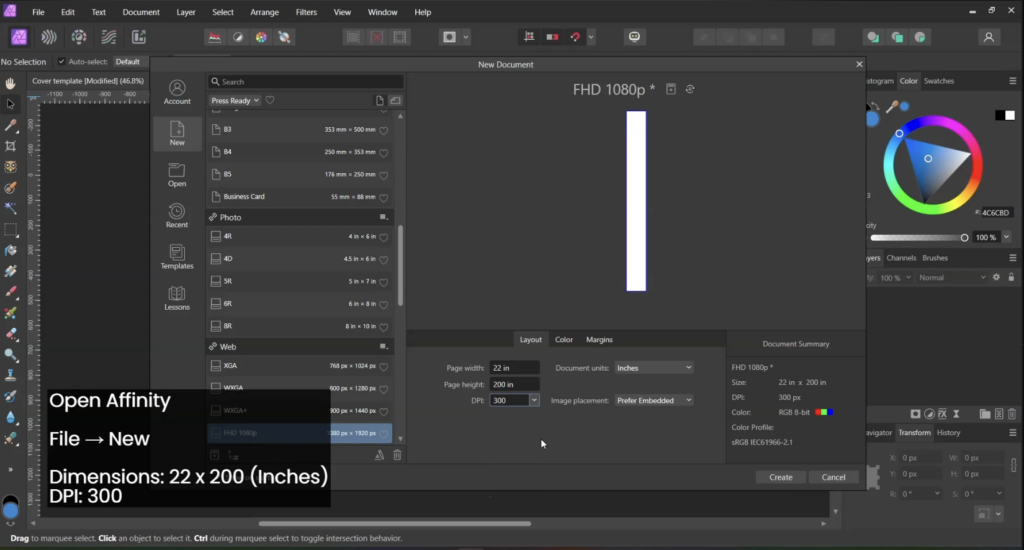
- Go to File → New.
- Set the document details: Width: 22 inches, Height: 200 inches, DPI: 300
- Click Create.
Add Background Color
Add a background color to easily check artwork quality.
Use:
- Black
- Neon Green
This helps identify:
- Blurry designs
- Pixelated logos
- Shadows or unwanted effects
Check Orders & Collect Designs
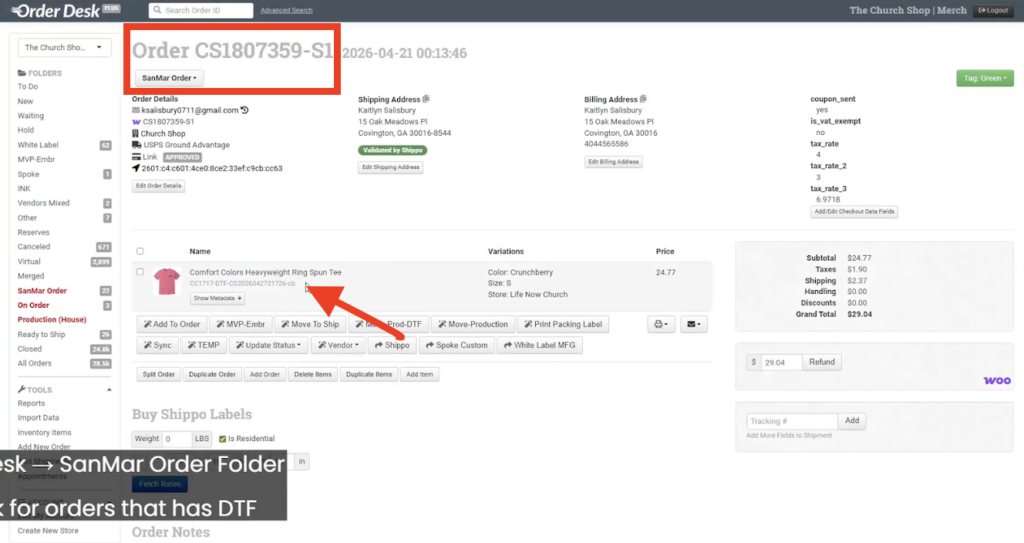
- Open Order Desk (OD).
- Go to the SanMar folder.
- Check orders with DTF items.
Open two folders:
1. Downloads
Create a new folder:
Orders – [Date]
Example:Orders - June 20, 2026
2. Church Shop Order Designs (Dropbox)
Use this folder to:
- Search for existing artwork
- Check if updated designs are available
- Reuse previously saved files
Docs: 1 2