Add Designs to Gang Sheet
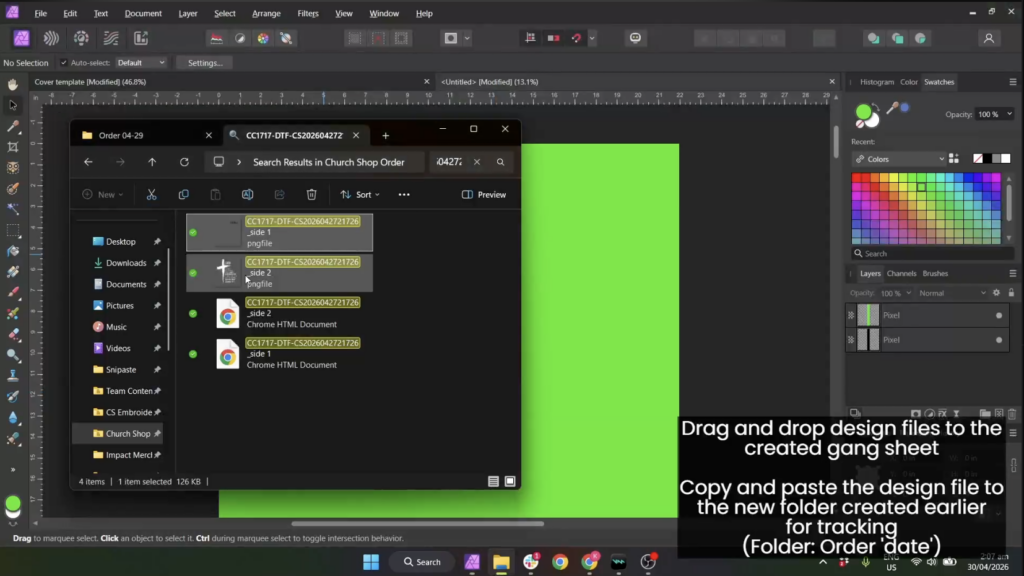
For each DTF order:
- Download/open the design file.
- Drag and drop the artwork into the gang sheet.
- Copy the design file into your daily tracking folder:
Downloads → Orders – [Date]
- Add a note in OD: Added to GS
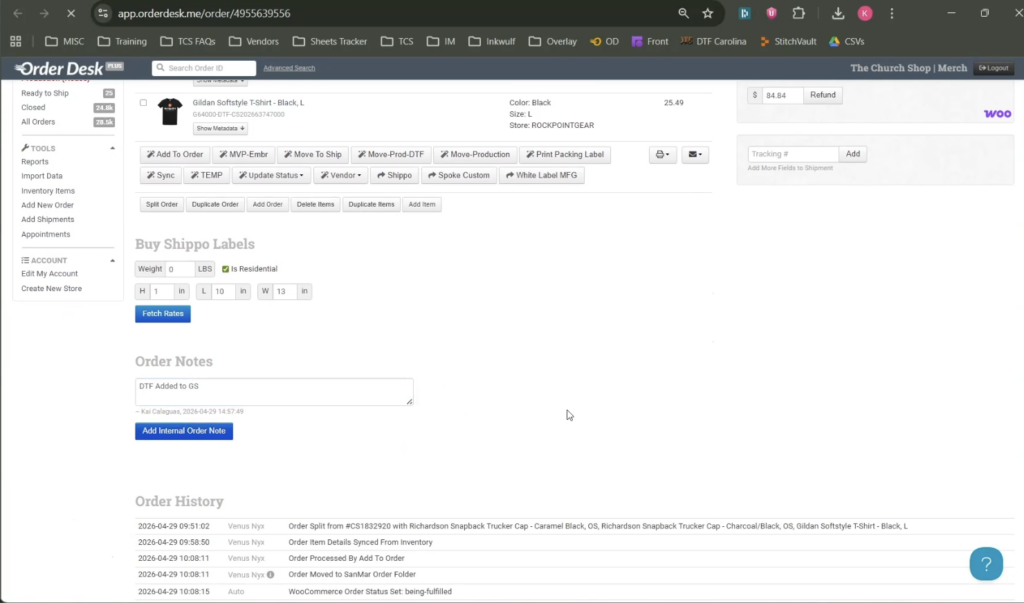
- Tag the order as: Unset in Order Desk
If the order has EMBR, leave the tag green.
Repeat the same process for all DTF orders.
If Design File Is Missing
If the design is not available in Church Shop Order Designs:
- Go to the order in OD.
- Download the image link metadata.
- Save the artwork.
- Rename the file using the SKU.
Example:
2220440-MB
- Move the file into: Church Shop Order Designs
This keeps the file available for future orders.
Arrange the Gang Sheet
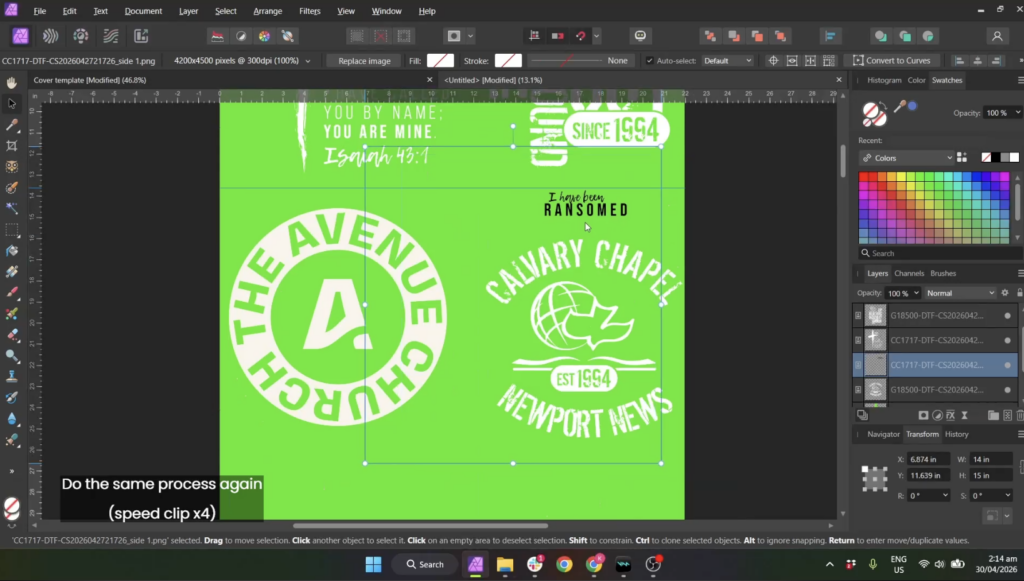
Arrange designs however you prefer, but always:
✅ Leave enough space for cutting
✅ Avoid placing designs too close together
If multiple products use the same design:
- Add the product SKU under the logo
- Make sure there is enough cutting space
If the gang sheet becomes full: Create a new one.
Remember:
✅ Width should always be 22 inches
✅ DPI should always be 300
Final Artwork Check
Before saving:
- Review the full gang sheet.
- Use the Black/Neon Green background to check:
- Blurry logos
- Pixelation
- Shadows
Adjust artwork if needed.
Double-check:
- No orders were missed
- All designs match the orders
Also check any Impact Merch orders.
Save the Gang Sheet File
If Gang Sheet is under 22×100 inches:
Save as:
- PNG
- Affinity file
Name the file using the gang sheet size.
Example:
22x100
If Gang Sheet is over 22×120 inches:
Save as:
- TIFF
- Affinity file
Example:
22x200
Then:
- Resave the TIFF as PNG in the Windows folder.
Order Gang Sheet in DTFC
- Open DTFC.
- Create the gang sheet order.
- Select the correct size.
- Upload the PNG file.
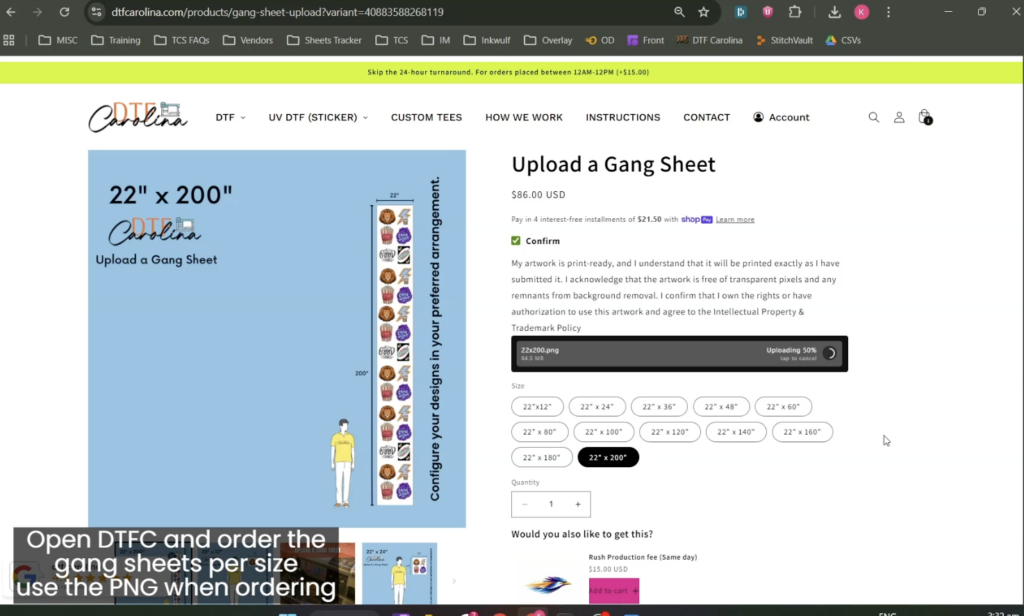
Before checkout:
✔ Review the uploaded file
✔ Confirm artwork is correct
✔ Shipping should always be LOCAL DELIVERY
Add the monthly discount code.
Example:
APR15
(Discount codes update monthly.)
Once everything is confirmed, place the order.
Send Order Details
After placing the order:
- Capture/screenshot the order details.
- Send the information to fulfillment for tracking.
Watch the walkthrough 👉🏻 here