
Updated 4/30/2026: Video Walkthrough
- Check the SanMar Order folder in Order Desk and identify all DTF orders.
- Review all orders for potential issues before creating the gang sheet.
- For design file issues, missing artwork, sizing concerns, or duplicate setups, verify whether the item/design was previously printed or approved before escalating to Support.
- To verify, search the item code/SKU in Order Desk to review past orders and setups.
- Retrieve the design files:
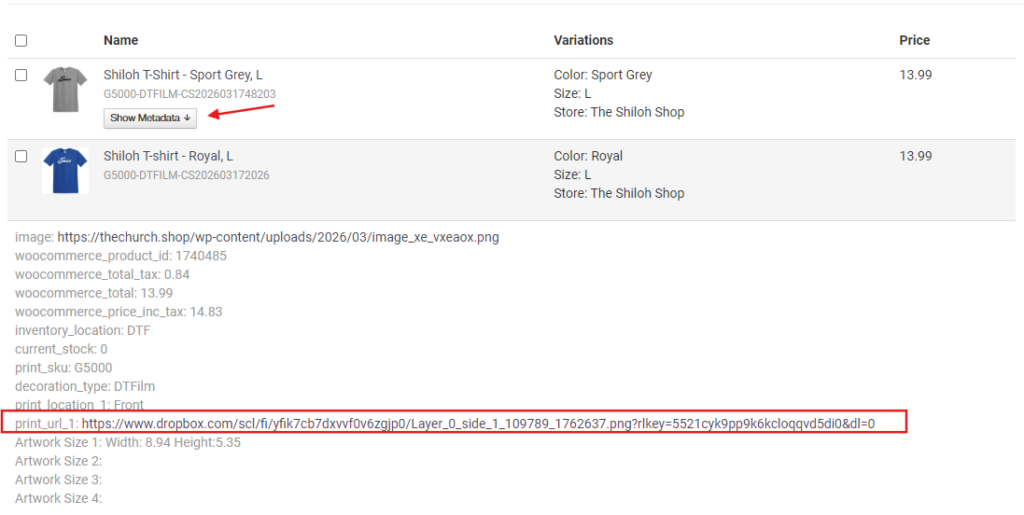
- Click Show Metadata and Sync Items in Inventory.
- Download the Dropbox links for each print side.
- Open Affinity Photo 2 and create a canvas at the required size.
- Refer to the DTF Carolina templates under Upload a Gang Sheet.
- Set units to inches and resolution to 300 DPI.
- Drag and drop the design files onto the canvas.
- Arrange files properly.
- Leave at least 1 inch spacing between designs for easier cutting.
- Review the gang sheet for shadows, transparency issues, low resolution, and other design quality concerns.
- Use Black and Neon Green backgrounds to check file quality.
- Save the files:
- Export the gang sheet as a PNG.
- Save the Affinity template file.
- Name files based on the gang sheet size (example: 22×200).
- Review the exported PNG and Affinity template, then send both files to the Slack group chat for approval.
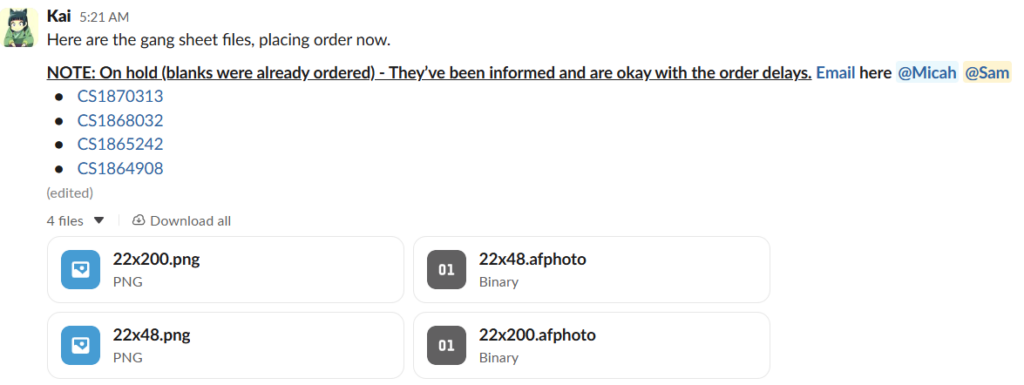
Once approved, open the DTF Carolina website.
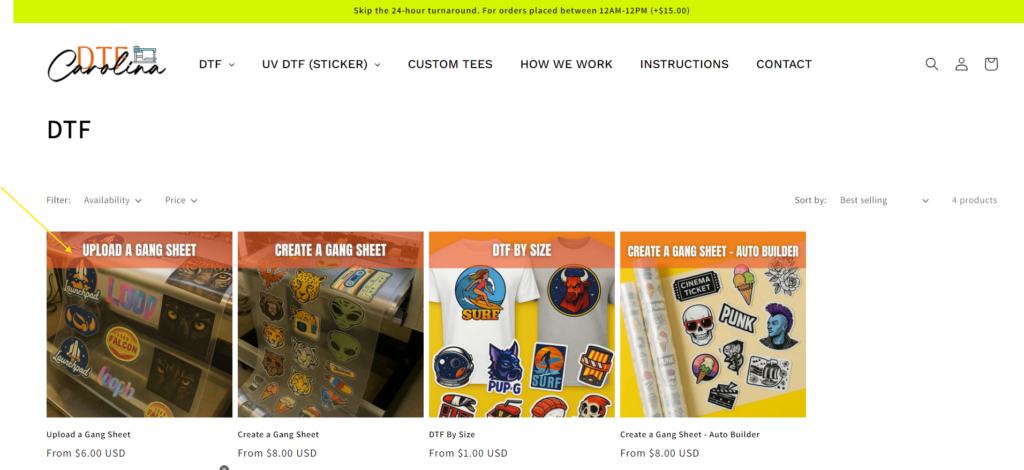
- Go to DTF → Upload Gang Sheet.
- Upload the PNG file and select the matching gang sheet size.
- Click Add to Cart and proceed to Checkout.
- Apply the current monthly discount code during checkout.
- Select Local Delivery unless Micah specifies otherwise.
- Review all order details before submitting payment.