
Verifying Product Pricing
After confirming the variations, verify the product pricing. Sometimes the plugin imports Sinalite’s base cost instead of the marked-up price. Example:
| Type | Price |
|---|---|
| Sinalite Cost | $56.87 |
| Retail Price (100% markup) | $113.74 |
To confirm pricing:
👉🏻 Open the product in Sinalite.
👉🏻 Match the variation details (size, coating, quantity).
👉🏻 Verify the base cost.
👉🏻 Apply the correct markup.
Applying Markup
Our standard markup for Sinalite products is: 100% markup. Example:
| Cost | Retail Price |
|---|---|
| $50 | $100 |
Instead of adjusting each variation individually, you can apply the markup using Bulk Actions.
Open the Variations section > Select Bulk Actions > Choose Increase Regular Prices > Enter 100%
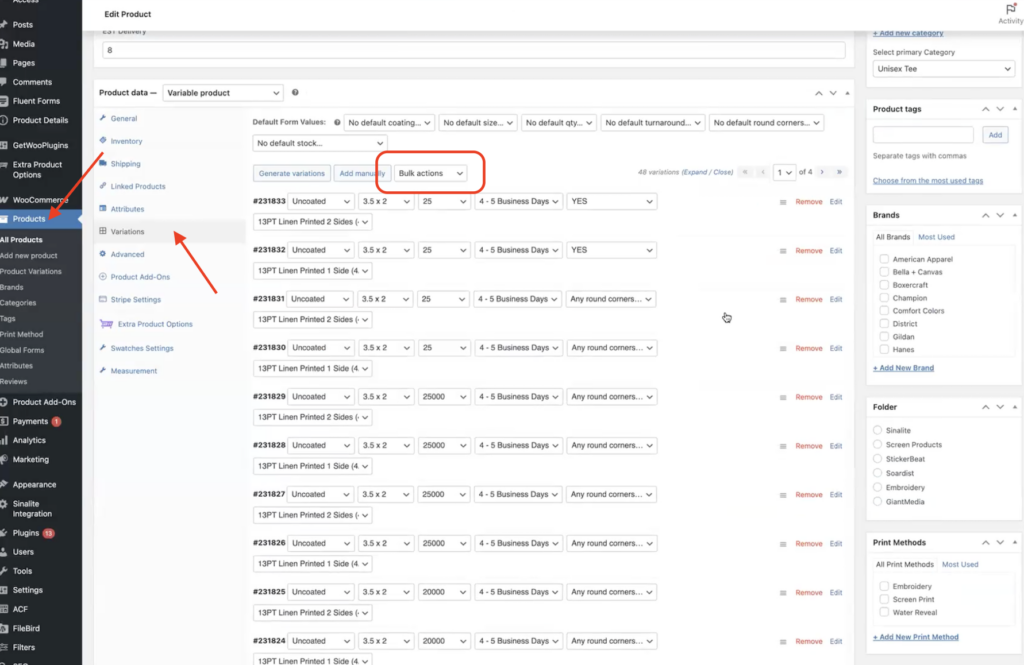
⚠️ Important: Entering 100 increases the price by $100. Entering 100% doubles the cost. Always use 100% for markup.
Adding Product Content
Once variations and pricing are confirmed, add the product content. Copy product details from the Sinalite product page, including:
- Product description
- Features
- Specifications
⚠️ Important: Remove any Sinalite branding before publishing.
Adding Artwork Templates
Sinalite provides setup guides and artwork templates for most print products.
Steps: Download the template from Sinalite > Upload the file to Dropbox > Add the Dropbox link to the product page.
This allows customers to use the correct design template for their artwork.
Assigning Categories
Assign the correct categories to the product.
Primary Category: Print Shop
Examples of Subcategories:
✅ Business Cards
✅ Flyers
✅ Postcards
✅ Envelopes
Also place the product inside the Sinalite folder for organization.
For more details you can watch the video here:
Passcode: 3g^i6rEV