
Overview
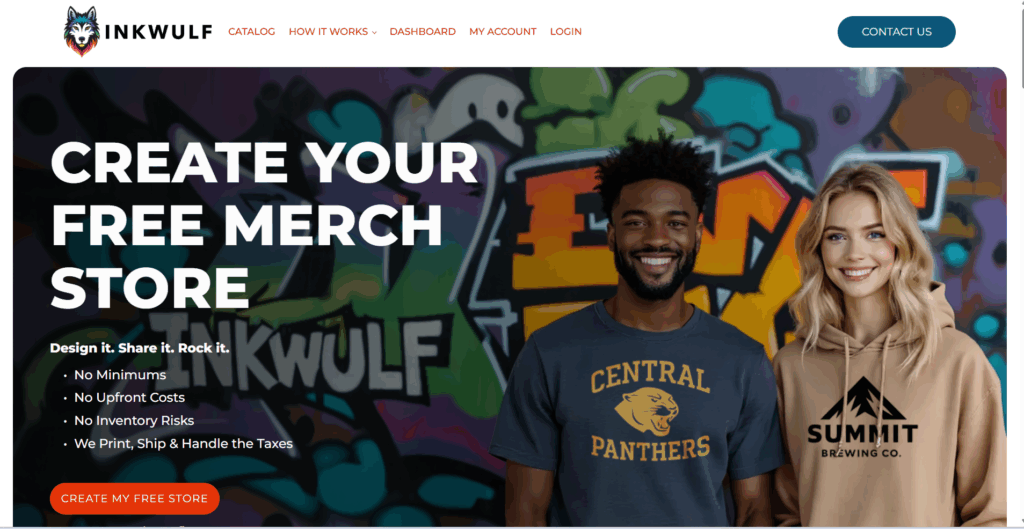
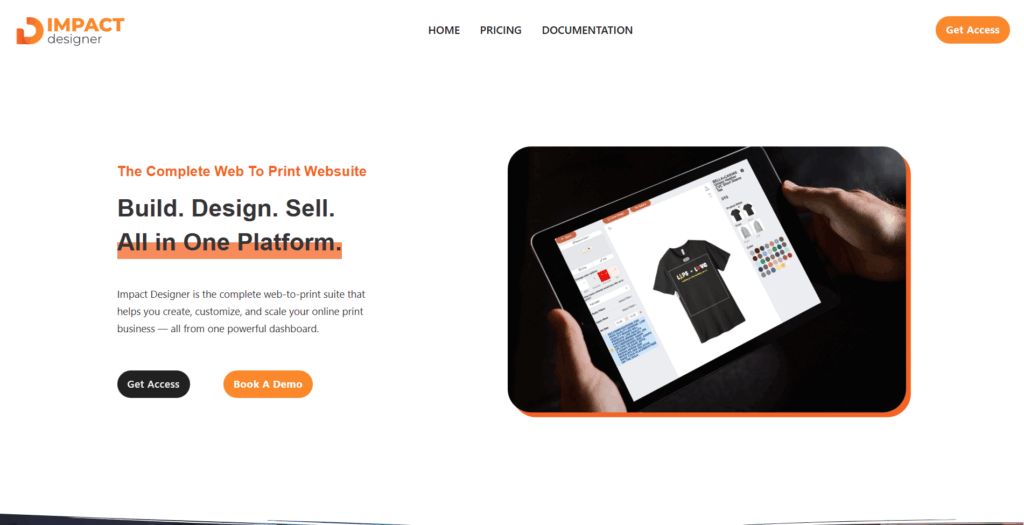
InkWulf is the first subclient using Impact Designer (formerly ImprintNext), marking the start of a new phase in offering our system as a Software-as-a-Service (SaaS) solution for multi-vendor marketplaces. InkWulf will use MVP as its decorator (DTG, DTF, Embroidery), and the setup will serve as the pilot for scaling future subclients.
inkwulf.com
impactdesigner.app
Purpose of the New CSV Importer
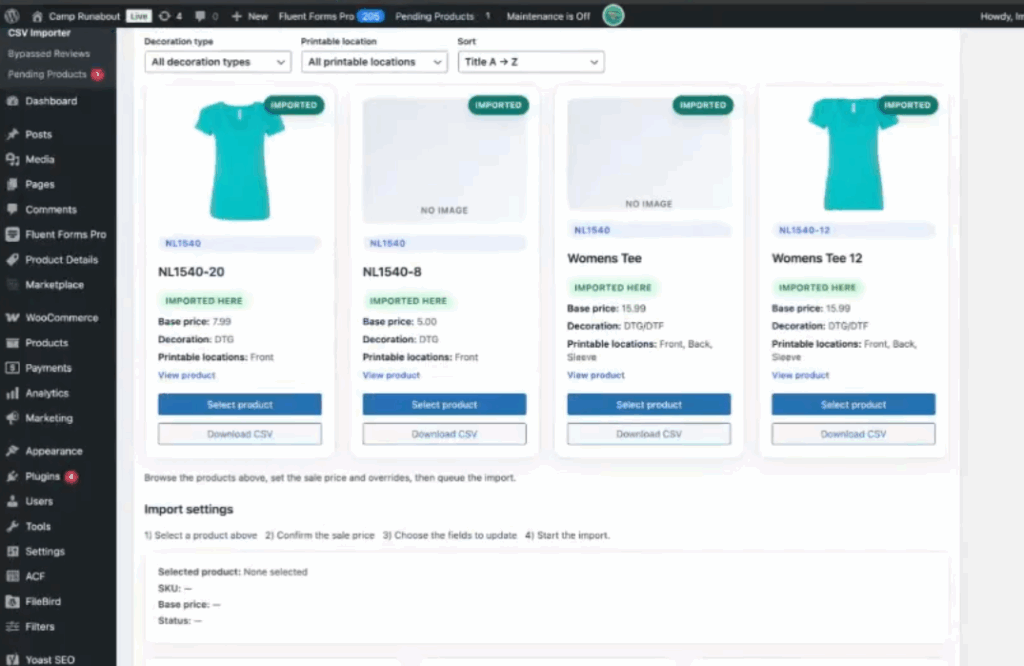
The Product Library & CSV Importer is a new system built into Impact Designer to streamline adding and managing products. It allows subclients like InkWulf to:
- Import products directly from a shared library.
- Set their own prices (with a set minimum threshold).
- Access consistent product data (title, SKU, base price, decoration types, and images).
- Automate import queues without manual setup per site.
This system replaces tedious, manual uploads and is designed to support future scalability.
Workflow Summary
Stage 1 – Product Catalog Organization
- The CSV sheet (master list) tracks all products, including:
- Product Title
- SKU
- Base Price
- Decoration Type (DTG, DTF, Embroidery, etc.)
- Image URL(s)
- Print Locations (front, back, sleeve)
- Fulfillment team is responsible for organizing and verifying this sheet.
Stage 2 – Adding Products to Impact Designer
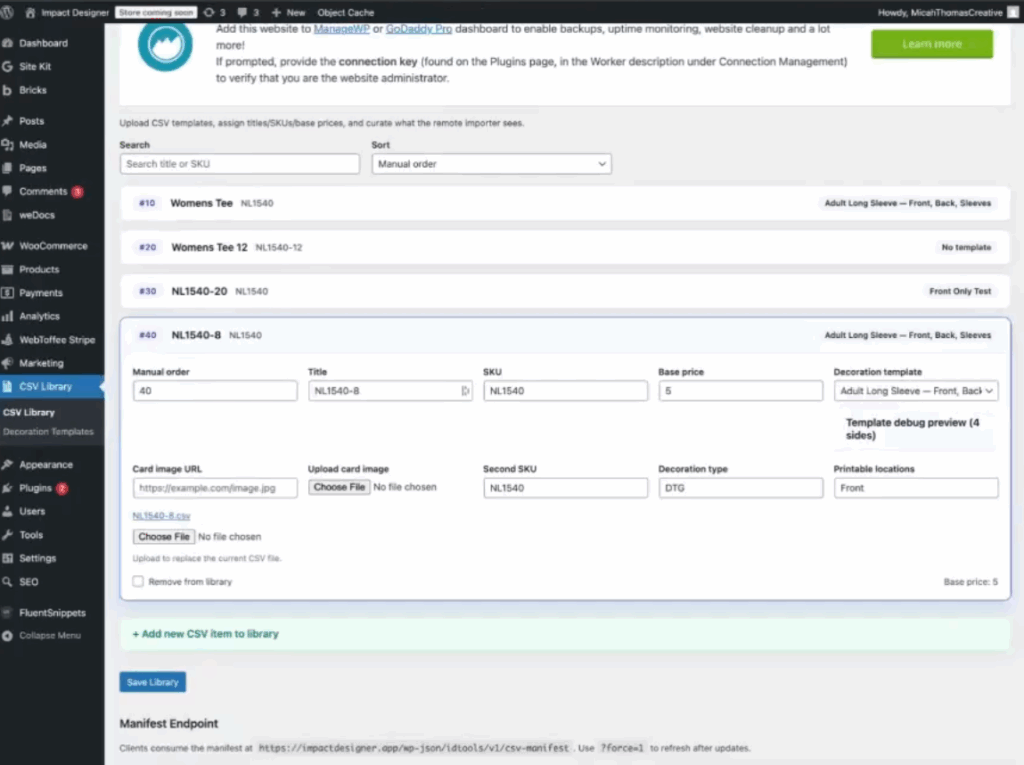
- Go to Impact Designer → Product Library.
- Click Add New Item.
- Upload the CSV Library (includes SKU, title, price, image links).
- Verify and fill in the following fields:
| Field Name | Description / Action | Notes / Example |
|---|---|---|
| Manual Order | Determines product sorting order in the list | Leave default; system auto-sorts |
| Card Image URL | Main product image | Automatically pulls first image from CSV |
| Title | Product name | Match master CSV exactly |
| SKU | Product code identifier | Match format used in MVP sheet |
| Base Price | MVP base price + small markup | Example: 26.99 |
| Decoration Type | Decoration method (DTG, DTF, Embroidery) | Use sheet reference; ask if unsure |
| Print Areas | Applicable print areas (front/back/sleeve) | Add if product has multiple print zones |
- Click Save
- Return to the product list and Refresh Library.
- Confirm that the product appears correctly in the list.
- Click Select → Import to push the product into InkWulf’s site.
The importer will queue and run in the background you can navigate away safely while it processes.
Notes
- Focus: Add DTG and DTF products first, then hats.
- Do NOT include:
- White Label items
- SNS products (excluded)
- Decoration Template Feature:
- Currently under development, no action needed yet.
- Once active, it will auto-apply design templates on import.
- Sorting (Manual Order): Optional; affects visual order only.
❓ FAQ
Q: What does Card Image URL mean?
A: It’s the main image shown for the product card; automatically populated from the CSV’s first image link.
Q: Should SNS or White Label products be added?
A: No. Only MVP products are included for this phase.
Q: What happens if the decoration type is unclear?
A: Check the CSV sheet or ask for confirmation before import.
Watch this video for a quick walkthrough.