
When an order issue arises (e.g., design error, misprint, missing, or damaged item), a reprint claim must be filed with the respective printer either White Label MFG (WLMFG) or MVP.
This guide walks you through how to prepare and submit a claim, including required documentation and contact steps.
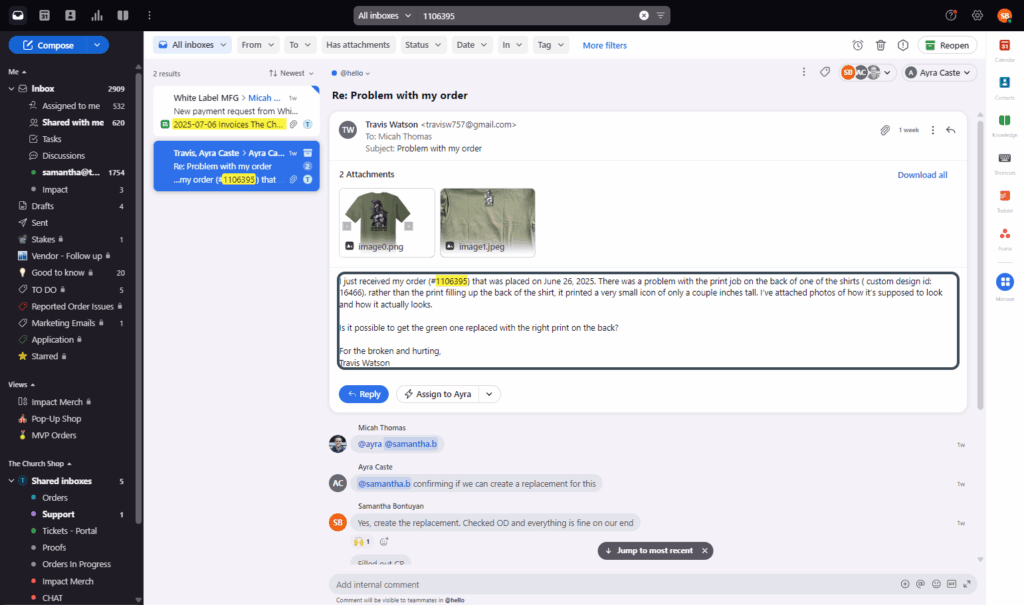
Verify the Issue
- Review the customer’s report carefully.
- Ensure photos of the issue are provided:
- If missing, reply to the customer requesting images before filing.
- For size issues, request a photo with a ruler or measuring tape in frame for verification.
- Once complete, confirm the order number and problem details are documented.
📎 Reference:
Replacement Request Guide – The Church Shop
Locate the Order in Order Desk
- Go to Order Desk.
- Search for the order number.
- Review the order details.
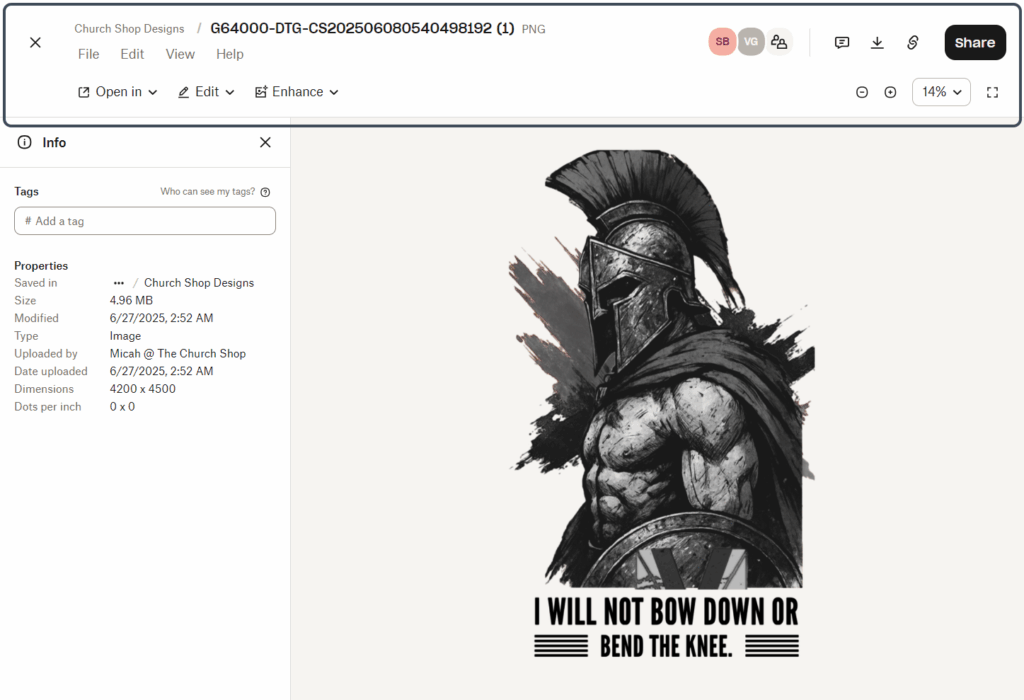
- Under Attachments or Design Files, click on Church Shop Designs → Download All.
- Save the design files for your records.
Save Files in Dropbox
- Navigate to:
Dropbox → Team Content → Error Files → WLFMG (for White Label)
or
Dropbox → Team Content → Error Files → MVP (for MVP issues) - Upload all related photos and design files.
- Label the folder with the order number for easy tracking.
Locate Reprint Information
- Return to Order Desk and search for the reprint order (format:
R-[original order #]-S1). - Open the order and:
- Click Show Metadata.
- Review the section titled Name / Variations / Price.
- Confirm that it says Order Scheduled To Be Sent to [White Label / MVP].
- Copy the Reprint Number (e.g.,
4754967917).
Filing a Claim – White Label (WLMFG)
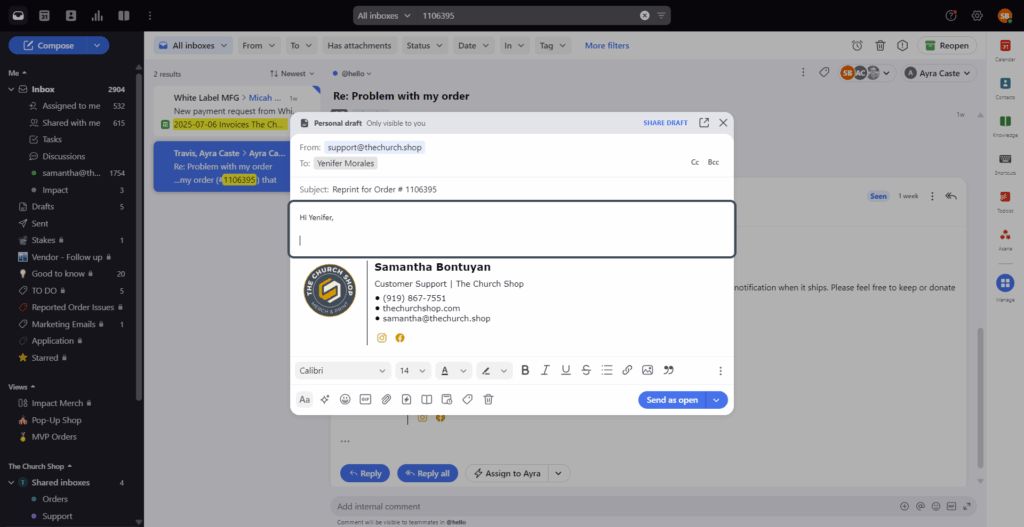
- Open Front → click Compose.
- Address the email to:
yenifer@whitelabelmfg.com - Include the following details:
- Order #: (original order number)
- Reprint #: (from Order Desk)
- Reason for Reprint: (brief description of the issue)
- Dropbox link to error files and photos
- Example subject line:
Reprint for Order #1106395 – Misprint on Front Design - Once sent, mark the email as Resolved in Front.
Filing a Claim – MVP
MVP follows the same process with a few differences in contact details and documentation.
- Open the MVP Credit Sheet in Google Docs (refer to internal shared folder).
- Upload all error photos and design files to:
Dropbox → Team Content → Error Files → MVP-Errors - Open Front → click Compose.
- Address your email to:
- Include in the email:
- Order #:
- Reprint #:
- Issue Description:
- Dropbox link to error folder
- Example subject line:
Reprint Request – Order #1106395 – Damaged Item on Arrival - Once sent, mark as Resolved in Front.
Notes & Best Practices
- Always confirm photos and order numbers before filing any claim.
- Ensure reprint reason is clearly stated (e.g., “Misaligned print,” “Hole in garment”).
- Upload files to the correct printer-specific folder in Dropbox.
- Use consistent naming conventions:
- Folder/File Name →
Order#[number]_IssueType
- Folder/File Name →
- Never file a claim without proof (photos).
- Keep internal notes in Order Desk for reference.