
This process is used to recreate an existing product when a client requests changes such as a new front design, when prices are not displaying correctly across different sizes, or when the client wants to use a different garment or style. Recreating the product ensures it is properly configured, priced, and live in the client’s store.
Steps to Recreate a Product
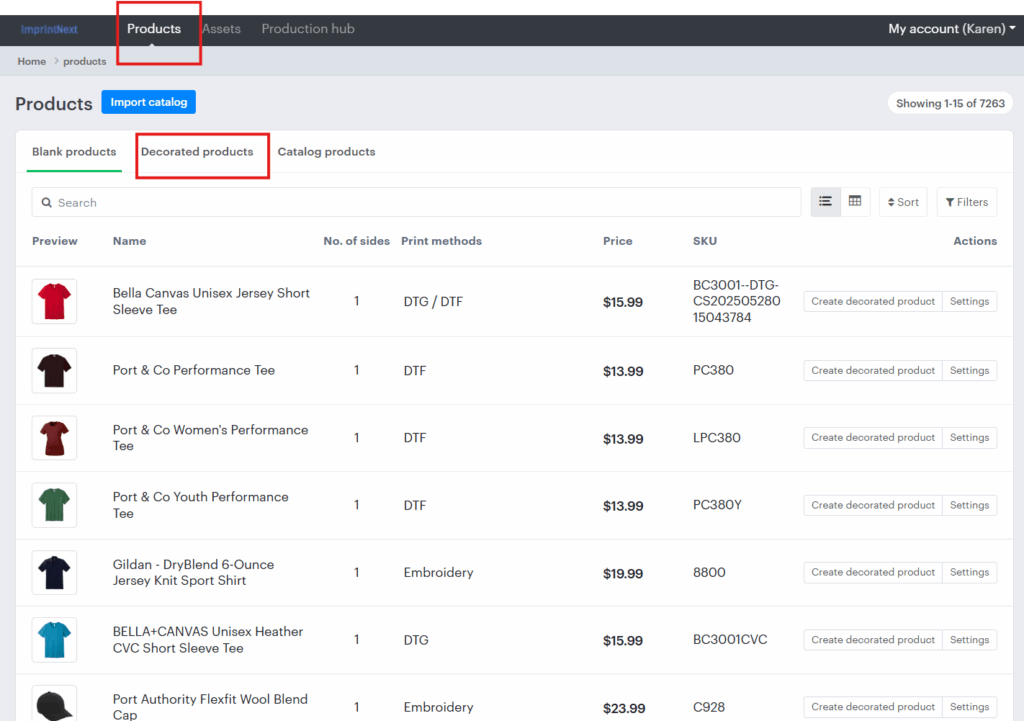
Start by locating the product that needs to be recreated and copy its SKU for reference. Next, open the Designer Tool (ImprintNext or XE) and navigate to Products → Decorated Products. Paste the copied SKU in the search bar to load the designed product. Once it appears, click Download to save the original logo or design file, which you’ll use for reference or editing.
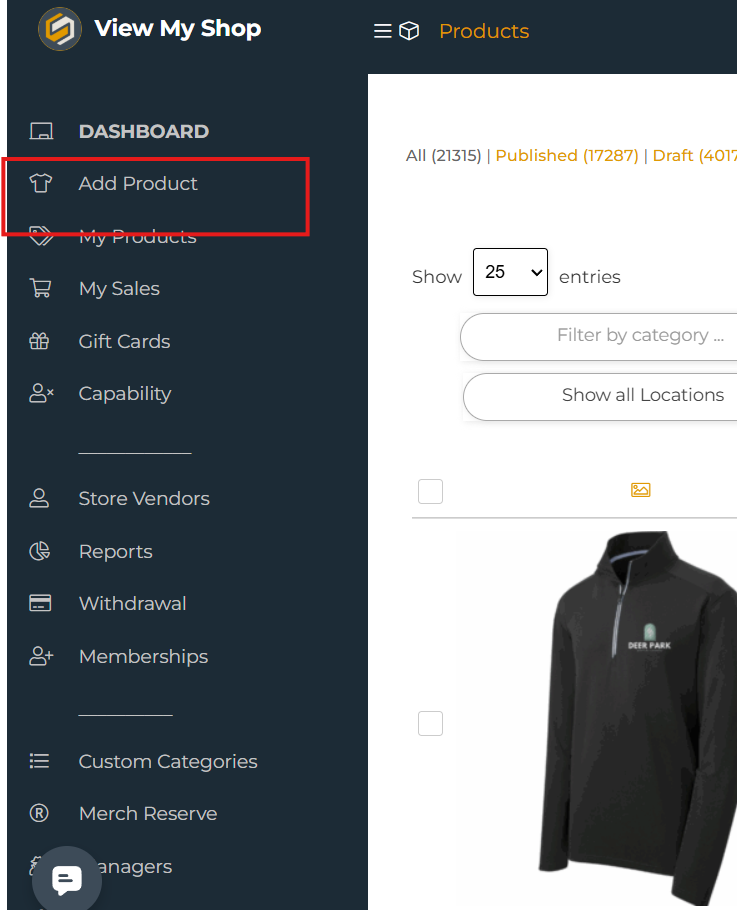
After that, go to your Dashboard, select Add Products, and look for the brand and product that match the one being recreated. Recreate the product by applying the new design as requested by the client. Make sure to copy all the color options from the original product so that the variations remain consistent. If the client is switching garments, confirm that all size and pricing details display correctly.
Finally, review the recreated product carefully check the design placement, colors, garment options, and pricing then click Submit. Ensure the product is live and visible in the client’s store before closing the task.
Check this quick walkthrough.