
When a store vendor reached out requesting to close their store, the first thing you need to do is ask for the main reason why. While we can’t convince them not to close, it’s important to understand their reason so we can learn from it, especially if it’s something related to our process.
Here’s how to do it: From the Store Vendor tab, look for the store that wants to take down their shop.
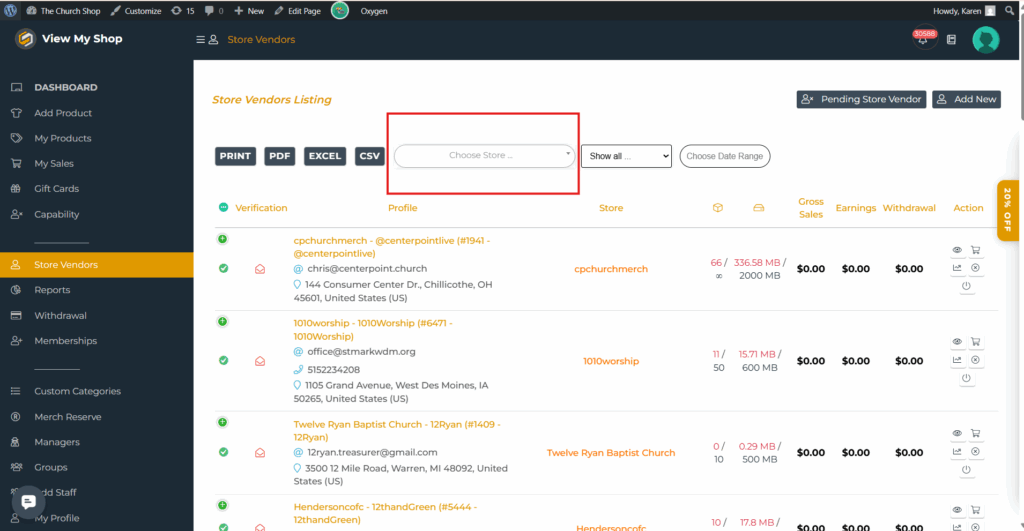
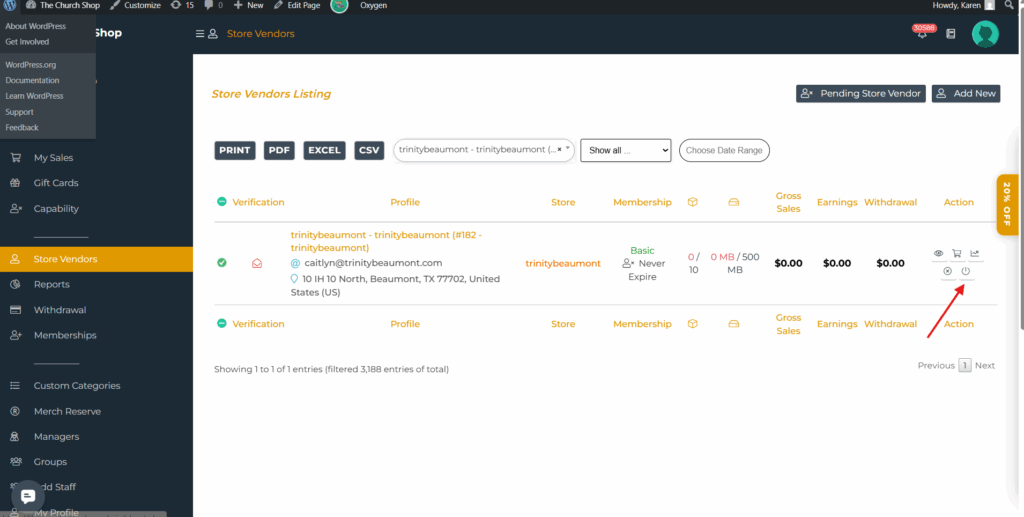
Once you’ve searched for the church, you’ll see two options available. For now, we’ll focus on the Offline Store Account option, which takes down their store.
To offline a store account, just click this button.
Now we’ll proceed with how to disable an account. Disable Vendor Account removes their access. Click on the store, and when the page opens, simply click Disable Account.
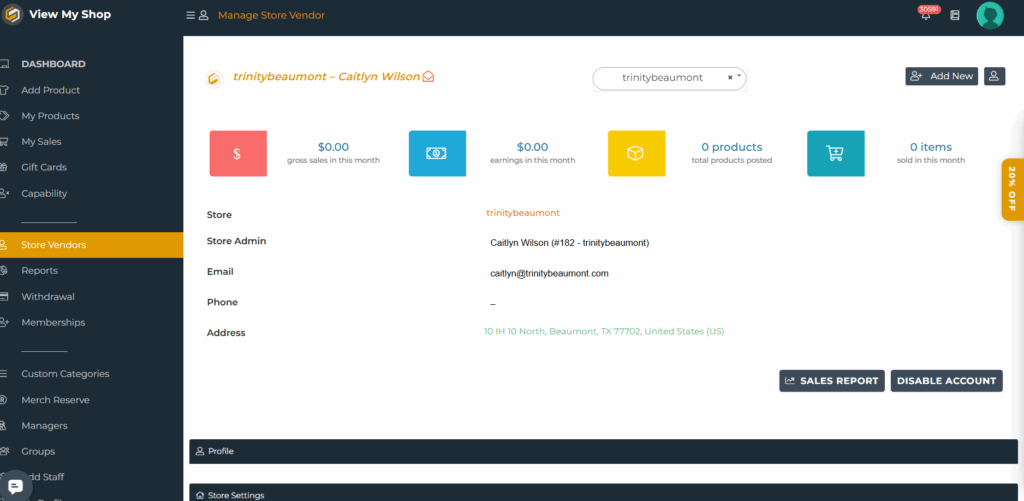
NOTE: When the customer reached out to take down their store, just click on Offline Store Account. DO NOT click on Disable Account.